Product Updates
November 24, 2026
Update #29: 17 improvements for your next video
This update brings together 17 improvements we have made since the Visual Editor. Two of them change how you start a dub: your video can now come in from a link, and your glossary from a spreadsheet. Seven more mean fewer corrections once the voice-over is done, from even more natural intonation to turning off lip sync where it was applied by mistake. The last eight are smaller improvements across the app, collected under Quick notes.
What's new
- Create dubs from a link: Google Drive, YouTube or a direct link to a video file
- Import and export fixed translations, “Don't Translate” terms and pronunciations as Excel, CSV or text files
- Questions, numbers, dates and the transitions between sentences sound even more natural
- Every translation is checked before it is voiced
- Turn off lip sync where it was applied by mistake, without a new lip sync run
- Plus eight quick improvements, from renaming videos to more reliable lip sync
1. Paste a link instead of uploading
Many videos already live in Google Drive. For those, the link is now all Dubly needs. Dubly checks the file, picks up its title, duration and thumbnail, and fetches the video itself.
Share the file in Google Drive
Set the video file's sharing to “Anyone with the link”. Make sure downloading isn't disabled for the file, otherwise Dubly can't access it.
Copy the file's link
Copy the link of the single video file. A folder link won't work, because Dubly needs the video itself.
Paste it into Dubly
Click “Create Dub” and paste the link on the “Video link” tab. After “Continue” you see the video with its preview and pick your languages as usual.
The “Video link” tab accepts three kinds of links:
- Google Drive: the link to a single video file, as Drive creates it when you share.
- YouTube: a regular video link, as before.
- Direct video URL: a link that points straight to the video file, for example an .mp4 on your own server. A link to a page that only embeds the video won't do.
If a video has only just been uploaded to Drive, Google may still be processing it. Dubly lets you know, and you simply try again in a few minutes.
If you work with the API, the new endpoint POST /api/v1/dubs/google-drive creates dubs straight from Google Drive.
2. Import your glossary from a spreadsheet
A translation style is where you tell Dubly how to handle your terminology, in three lists: “Don't Translate”, “Define Translations” and “Pronunciations”. If you already keep these lists in a spreadsheet, you can now import them in one go instead of typing them in line by line.
Open a translation style
Click “Translation Style” in the sidebar and open the style you want to fill, or create a new one.
Download the template
Click “Import” at the top. In the dialog, “Download template” gives you an Excel file with one sheet per list and short instructions. Enter one entry per row, starting in row 2.
Import the file
Drag the file into the dialog or choose it. Dubly accepts .xlsx, .csv and .txt files up to 5 MB.
Check, apply, save
Before anything is applied, Dubly shows you what's new, what's already there, where there are conflicts and which rows are skipped, each with a reason. “Apply” adds the entries to the style, “Save” stores them.
Good to know:
- Your existing entries stay. If a term already has a different translation or pronunciation, the existing entry wins and the row from the file is skipped.
- No duplicates. Anything that is already in the style, or further up in the file, is added only once.
- Export. “Export” downloads the lists as an Excel, CSV or text file, for example to align them with an agency or to reuse them in a second style.
- CSV and text. Instead of three sheets, these use one table with the columns type, source and target. The import dialog shows the exact format.
3. A more natural voice-over
We have fine-tuned the voice-over and the translation step before it in six places. Each of these improvements means less work for you once a dub is finished.
- Questions. Punctuation such as the question mark and the structure of a sentence now shape the intonation even more. A question in the original stays a question in the translation, even when it is shortened or rephrased, and the voice speaks it as one. This also covers languages with their own question marks, such as Spanish (“¿…?”) and Greek.
- Numbers, amounts, dates and abbreviations. The voice now reads them the way a person would say them, even more reliably than before.
- Smoother transitions. Each sentence picks up the melody of the one before, so the voice-over flows the way natural speech does. Transitions between sentences are clean, pauses within a sentence are clean silence, and where the original has long pauses, the voice keeps its natural pace.
- One voice per speaker. If the transcription mistakenly detects a speaker change in the middle of a sentence, Dubly corrects it, so the cloned voice stays the same throughout.
- Regenerated lines that fit in. When you regenerate a single line in the editor, it now sounds like the lines before and after it.
- A check before the voice-over. Every translation is checked before it is voiced. If a line is left untranslated, comes out in the wrong language or repeats the line before, Dubly translates it again. Product codes such as “P1735” are also read without an artificial pause.
These improvements apply to new dubs. Existing videos stay as they are and only sound different once you regenerate them.
4. Turn off lip sync where it was applied by mistake
Lip sync belongs where someone is speaking on camera. In places where it was applied by mistake, you can now turn it off in the Visual Editor. Your change goes straight into the finished video, without a new lip sync run. The rest of the lip sync stays as it is, and the moment you turned off shows the original picture.
Open the Visual Editor
Open the video, pick the language and switch to “Visual” at the top. Lip sync must already have run for that language.
Turn the block off
Click the block on the “Lip sync track” and set it to “Off”. The L key does it faster.
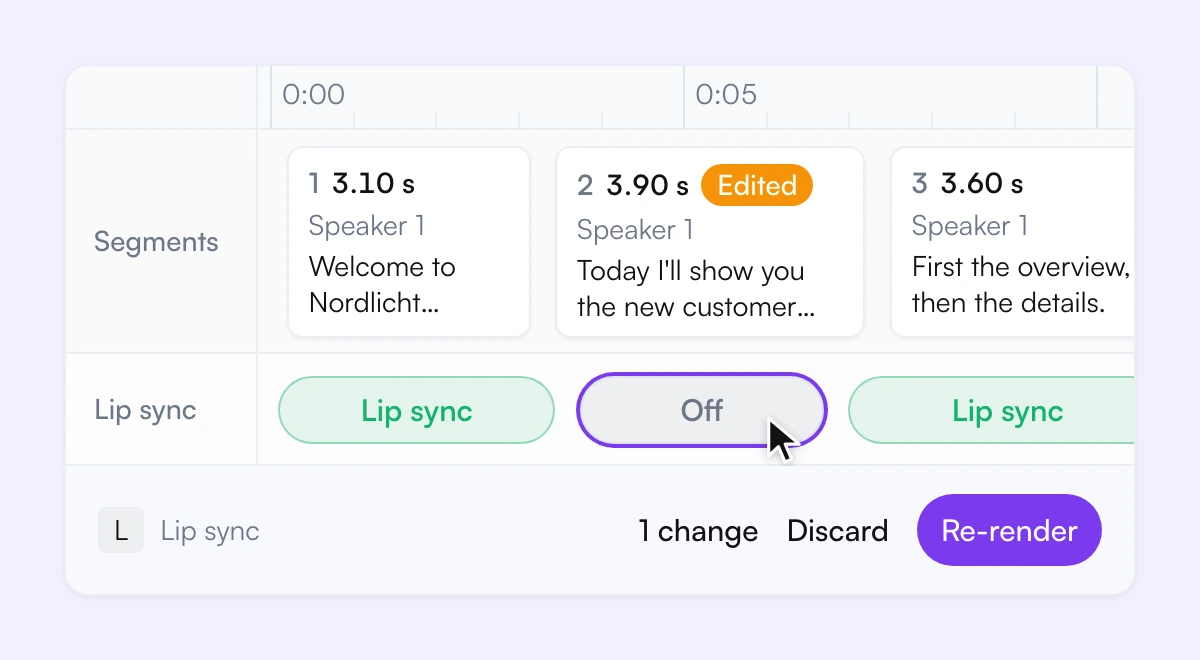
Re-render
Click “Re-render”. Dubly rebuilds the video from the existing lip sync, and you follow the progress just like a regular lip sync run.
Good to know:
- Free during the first week. A language's lip sync files are kept for at least seven days after the run. As long as they are there, turning blocks off costs no credits. After that, the change needs a new lip sync run.
- Text first, lip sync second. If you change text or timing in the same step, the video gets a new voice-over and the lip sync for that language is removed. The editor warns you before you click “Re-render”. It works best to finish text and timing first, then start lip sync, then turn off individual moments.
- After a new lip sync run, all blocks are switched on again. Dubly tells you how many are affected before you start, and turning them off again costs no credits.
5. Quick notes
- Rename videos. Use “Rename” in a video's “⋮” menu, or click the title in the detail view. Only the name shown in Dubly changes, the video and its subtitles stay as they are.
- Progress at a glance. Inside a project, you now see a video's progress and when it's finished right away, without reloading the page. And if you leave a tab open for more than an hour, videos and segments still play.
- Switch organizations. If you belong to several organizations, you can switch between them with a new menu item at the top of the sidebar. It also shows since when you have been a member.
- Faster loading. The editor and player now load even faster, which you'll notice most with long videos and slower connections.
- Clearer credits. We've improved how your remaining credits are displayed. The sidebar, “My Plan”, invoices and notices now all speak of credits: one credit per video minute and target language, plus one more for lip sync. If you work with one-time credits and no subscription, the sidebar shows what's left as a number.
- Visual Editor in more browsers. We've improved Visual Editor support for even more browser versions, including segment playback in Chrome and Safari on slower connections.
- Large files. Video files up to 5 GB go through reliably, including long videos with many speakers.
- More reliable lip sync. Lip sync runs more reliably. While it is running for a language, “Update” is locked so nothing gets overwritten.
Tell us what's missing
The most interesting cases only show up with your real videos. If something is missing when you work with links, glossaries or lip sync, or something doesn't work the way you expect, message us in the app chat or reply to the newsletter. We read every message.
Try it on your next video
Create dubs from a Google Drive link, without downloading and uploading
Import your glossary and pronunciations from an Excel file
Turn off lip sync where it was applied by mistake, without a new run