Social Media Video Translation
July 9, 2026
How to Translate YouTube Videos Automatically
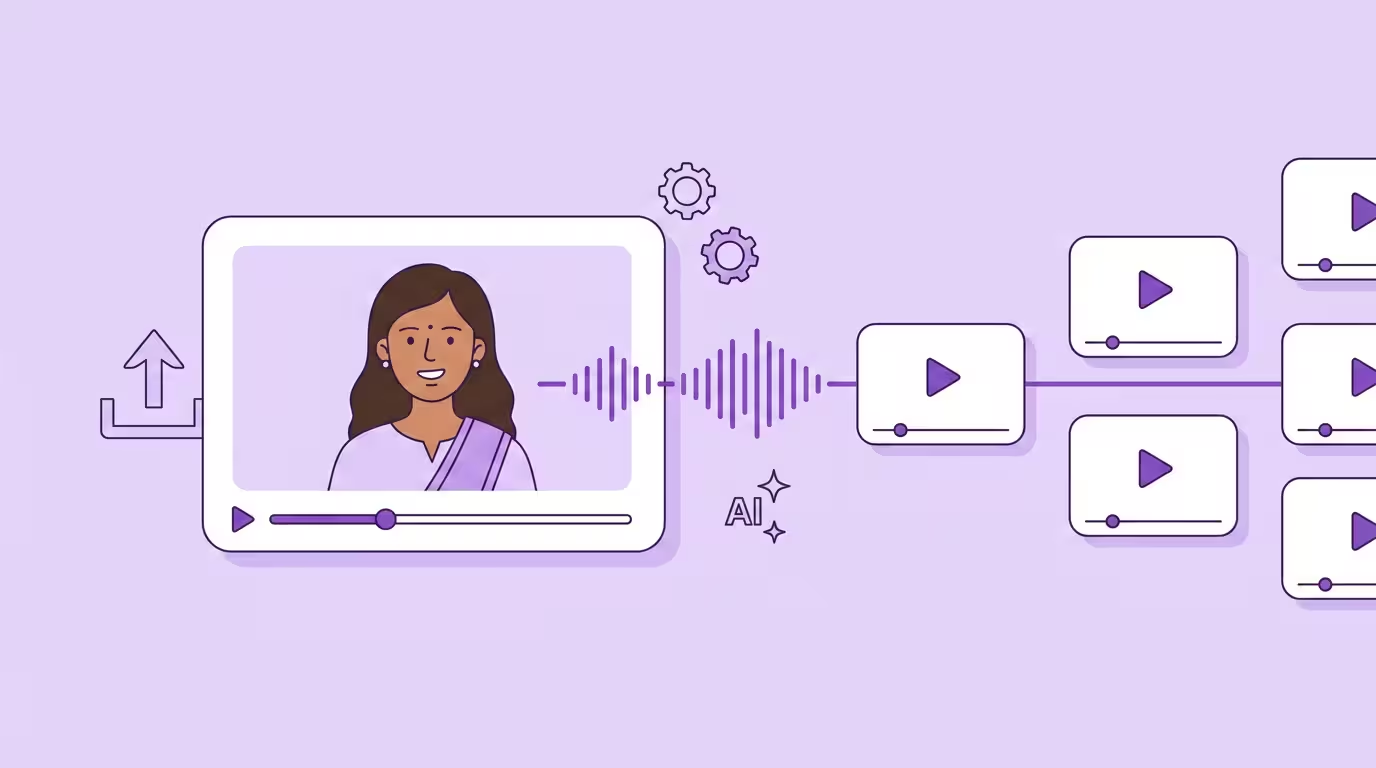
To translate a YouTube video automatically, you have three real paths: YouTube's built-in dubbing feature (free, generic voice, 30+ languages), an AI video translator like Dubly that generates a dubbed audio track with your own voice and lip sync, or a browser tool that translates captions on the fly for viewers. Which one fits depends on whether you're a creator looking to reach a new target audience or a viewer trying to understand a video in a different language.
"Automatic" is a slippery word.
Every tool marketed as a YouTube translator uses it loosely. Some mean "upload once, get 10 languages back without you touching anything." Others mean "we generate a transcript, but you still review every line." YouTube itself now runs a fully hands-off dubbing feature that many creators haven't even noticed is turned on.
This guide covers every way to translate YouTube videos automatically in 2026 — what each method actually handles, where it still needs your attention, and when automation is genuinely hands-off versus marketing shorthand. It sits inside our broader social media video translation guide. For the manual step-by-step walkthrough and deeper Multi-Language Audio detail, see how to translate a YouTube video.
Key Takeaways
- YouTube's native dubbing is enabled by default for eligible creators in 30+ languages — great for testing reach, weak on brand personality
- Multi-language audio is different from automatic dubbing: one is generation, the other is delivery
- Professional translators preserve your voice and sync mouth movements frame by frame — the quality delta shows up in completion rates, not just comments
- YouTube Analytics → Geography tells you which languages to translate into first — demand data beats gut feeling
- Always review the automatic output — brand names, jargon and proper nouns break in every pipeline without a glossary
YouTube's Built-in Auto-Dubbing — Free, Automatic, but Limited
YouTube's dubbing feature is the most genuinely hands-off option available. The platform transcribes your original audio, translates the captions, and generates a translated audio track — all without you uploading anything extra. For eligible creators, it's enabled by default.
How YouTube Auto-Dubbing Works
Everything happens inside YouTube Studio. The dubbing feature uses machine learning algorithms behind the scenes — no separate tool, no upload, no API key. Once dubs are generated, they appear under Content → Languages in your dashboard, ready to preview, review or publish.
Some languages support what YouTube calls "expressive speech" — the synthesized voice replicates pitch and intonation from the original speaker. Languages without that marker get a flatter, more generic AI voice. The Languages panel tells you which is which.
Eligibility and Supported Languages
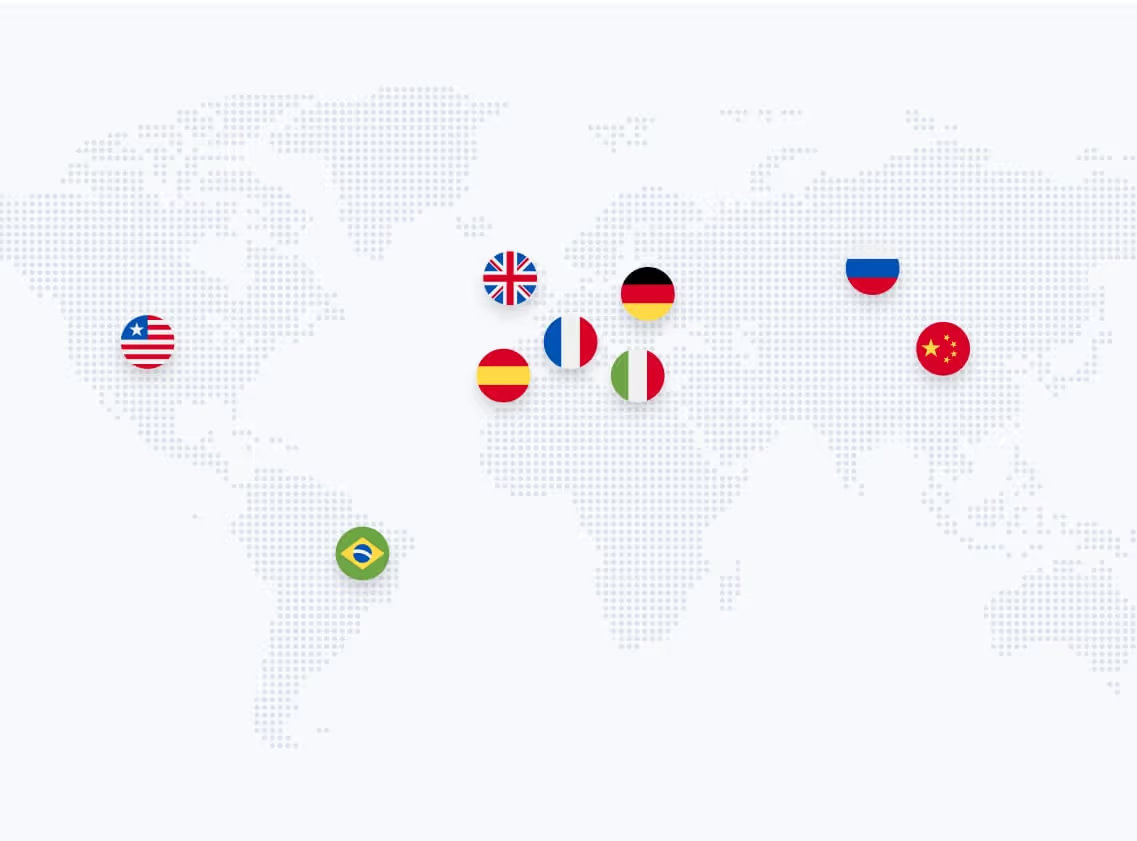
YouTube supports dubbing across 30+ languages including Spanish, French, German, Hindi, Portuguese, Korean, Arabic and Japanese (Source: YouTube Help, 2026). For captions, auto-translate works in over 100 languages — a much wider net, because captions don't need voice synthesis.
Not every video qualifies. Videos are ineligible if they exceed 120 minutes, contain minimal speech, use an unsupported source language, include speech paced too rapidly, or trigger copyright claims on the audio. That disqualifies most music uploads, long-form podcasts over two hours, and anything with heavily edited speech layers.
How to Enable or Turn Off Auto-Dubbing
The feature is on by default for eligible creators. To turn it on or off, open YouTube Studio → Settings → Content → Automatic dubbing and toggle it. You can also switch to "Publish manually" so new dubs wait for your review before going live — most creators should do this after seeing their first few generated tracks.
Viewers sometimes want the opposite. If you're watching a YouTube video that's been dubbed into your language and you'd rather hear the original, open the settings gear in the player, tap Audio track, and select the original language. That disables dubbing for that single video — it's a viewer preference, not a creator toggle.
Why Creators Sometimes Still Choose Something Else
YouTube's built-in dubbing is the floor of quality, not the ceiling. This is where "automatic" starts to feel slippery again. The synthesized voice is generic — it doesn't sound like you. There's no lip sync; the mouth movements still match the original language, so the video looks off. YouTube itself flags that dubs may contain errors "due to mispronunciations, accents, dialects, or background noise." Creators who tried the native feature first usually switch to a professional translator after their first complaints about misgendered pronouns, wrong product names, or machine-sounding voices on what used to feel like a personal channel.
AI Video Translator Tools — When Hands-Off Needs Voice Cloning
An AI video translator does what YouTube's native feature doesn't: clones your voice, syncs the mouth, lets you edit the transcript. You upload the video once, pick target languages, the tool runs transcription, context-aware translation, voice generation and sync. If you care what your channel sounds like in another language, this is the category you want.
The better tools in this category combine three things YouTube's free option skips. Realistic voice cloning that preserves your pitch and tone. Precise AI lip sync that adjusts mouth movements to the new audio. A glossary layer so brand names and niche jargon stay consistent. You also get an editable transcript — you can catch the errors instead of hoping the pipeline didn't make any. Same cloning tool handles voice-overs, translated subtitles and fully dubbed audio; you choose which outputs you publish, or batch the same video into multiple languages at once.
Pricing varies widely: Dubly starts at €89/month for entry-level credits, while other tools price lower for basic tiers. Professional plans scale with the minutes you need, into four figures per month at high volume, with custom pricing above that. Free trials with one or a few minutes of credit are standard — worth using before you commit, because voice-cloning quality is the only thing that really differentiates these tools.
I've run the same 3-minute creator clip through these tools. Dubly's voice cloning came out clearly ahead of the field, and HeyGen's avatar demo was the prettiest but also the furthest from the actual speaker. We see the same pattern in almost every account that starts with YouTube's free feature: they use it for a week, hear their voice as a flat synthesized narrator, and start shopping for a tool that preserves it. By the time our customers are on a paid plan, they've already decided the native dubbing was the floor — not the ceiling.
YouTube Multi-Language Audio — What's Automated, What You Upload
Before any of those translated tracks reach viewers, there's a delivery layer most creators miss. Multi-language audio is different from automatic dubbing — that's the single biggest point of confusion. The built-in feature generates translated audio inside YouTube. Multi-Language Audio (MLA) is the delivery mechanism: the ability to attach multiple audio tracks to one video so viewers automatically hear the language they prefer.
If you use YouTube's built-in feature, it publishes its generated tracks through MLA on its own. If you use an external translator, you export the translated audio files and upload them to YouTube through MLA yourself. Either way, the viewer experience is identical: they see one video, they hear it in their language, no setup on their side.
MLA went from invite-only pilot to all eligible creators in September 2025. Across early adopters, over 25% of watch time came from non-primary language audiences (Source: YouTube Blog). YouTube reported that Jamie Oliver's multi-language audio tracks gained three times more views; MrBeast was among the creators who piloted the feature.
MLA supports up to 6 tracks per video and works on Shorts as well as long-form content. Same delivery channel, very different quality floor.
How to Translate a YouTube Video Automatically — Step by Step
Here's the practical workflow from upload to published translated track. The shape is the same whether you use YouTube's native feature or a third-party translator. The details differ in exactly two places.
- 1
Choose Method
Native dubbing for reach tests, a dedicated tool for voice + lip sync
- 2
Let It Translate
Tracks generate automatically or at about twice real-time
- 3
Review Text & Voice
Check brand names and jargon line by line per language
- 4
Publish via MLA
Deliver each track to viewers in their own language
Step 1: Choose Your Automation Method
Open YouTube Studio and check whether your channel is eligible for the native dubbing feature (Content → Languages). If it is, the built-in option costs you nothing to try — it's the fastest way to see if translation moves anything on your channel. If you need voice preservation, lip sync, editable transcripts or more than 30 target languages, use a dedicated AI video translation tool instead. Most creators I talk to end up using both: the free option for long-tail back catalog, professional tools for flagship uploads.
Step 2: Let the Tool Translate
With YouTube's built-in feature, there's nothing to do here — translated tracks appear in YouTube Studio on their own within hours of upload. With an AI translator, you upload your video file (MP4 or MOV, up to 4K), pick target languages, and hit translate. Processing runs at about twice real-time — a 5-minute clip comes back in roughly 10 minutes per language. Most tools run languages in parallel: five languages, same ten minutes.
Step 3: Review the Translated Text and Voice
This is where nine out of ten creators start regretting the automation promise. Every pipeline makes mistakes on brand names, technical jargon, proper nouns and cultural nuances. YouTube's native feature lets you preview each language track before publishing; AI translators expose the full transcript for line-by-line human review and editable translations. Spend 10–15 minutes reviewing per language. Fifteen minutes now, or dozens of comments from non-native viewers catching every error later — easy trade.
Glossaries are the single biggest unlock. Skip the glossary and you'll ship the same mistake three times. Best practice: define your brand terms, product names and recurring vocabulary once, before the first translation. Every future run stays consistent. We see our customers with glossaries ship noticeably fewer revision cycles — the setup pays back by the third video.
Step 4: Publish Through YouTube Multi-Language Audio
If you used YouTube's native feature, publishing is one click in the Languages panel — or already done, if you left the default settings alone. If you translated externally, open YouTube Studio → Languages → Add Language → upload the file. YouTube handles track-switching based on each viewer's language preference. Localized content also gains discoverability inside YouTube's search engine — translated captions and titles get indexed in the target language, unlocking search terms you weren't indexed for before.
Comparison — Native Dubbing vs Free Online Translators vs Professional AI
Now the differences start to matter. Here's the honest breakdown across the three categories most creators choose from.
| Comparison Factor | YouTube Native Dubbing | Free Online Translators | Professional AI (Dubly) |
|---|---|---|---|
| Voice preservation | Generic AI voice | Generic or text-only | Voice cloning in every language |
| Lip sync | Not supported | Not supported | Frame-by-frame mouth movement sync |
| Languages supported | 30+ (expressive speech in a subset) | Varies (20–100+, mostly captions) | 38+ with voice cloning + lip sync |
| Editable transcript | Review transcript only | Subtitle text editing only | Full transcript + glossary |
| Cost | Free | Free-freemium | From €89/month, free trial available |
| Best for | Back catalog testing, reach experiments | Viewers translating foreign videos | Creators scaling a global audience |
Translate Your First Video
Results in just a few minutes
No credit card required
Best translation quality worldwide
Translate Someone Else's YouTube Video (Viewer-Side Tools)
Not every search for "translate YouTube video automatically" comes from a creator. Half the time it's a viewer who landed on a foreign-language video and wants to watch it in their own language. Honestly? Most viewers don't need any special tool here — YouTube's own auto-translate captions cover about 80% of it.
YouTube's auto-translate captions solve most of it, as long as you're working with videos with captions already on them. Click the settings gear in the player → Subtitles/CC → Auto-translate → pick your language. Translated captions in over 100 languages, generated on the fly, free. Spanish and French translate cleanly; rare languages get clunkier.
Chrome extensions like YouTube Translator go further. The extension generates translated subtitles, sometimes with voice-over dubbing, and runs in your browser while the video plays. Everything happens client-side. Useful when the creator didn't bother with captions at all.
URL-paste translators let you paste a YouTube URL and get back translated subtitles or a dubbed version. Free tiers use a default TTS voice — fine for one-off viewing, not for anything else.
And no — you can't republish the output of any of these without permission. These are for understanding, not redistribution.
Common Mistakes When You Translate YouTube Videos Automatically
Every creator we onboard makes at least one of these. Knowing them upfront saves the revision cycle.
Trusting the output without reviewing it. "Automatic" is not "accurate." Every automatic dubbing pipeline — YouTube's native one included — will mistranslate brand names, misgender pronouns in gendered languages, and occasionally hallucinate entire sentences on noisy audio. Review the dub transcript. Always.
Translating into the wrong languages. Most creators pick languages based on gut feeling. Open YouTube Studio → Analytics → Geography — the data already tells you which audiences are watching despite the language barrier. If 9% of your watch time comes from Brazil despite your content being in English, Portuguese is your first target. Pick new audiences where demand is proven.
Using the native feature for flagship content. YouTube's built-in dubbing is excellent for back-catalog videos and low-stakes uploads. It's a poor choice for the videos that define your channel. The off-the-shelf AI voice strips out personality — exactly what most viewers subscribed for. Reserve it for reach experiments; use a professional translator for anything you'd put on your channel trailer.
Ignoring the lip sync problem. Dubbed audio with original-language lip movements creates an uncanny valley. Completion rates drop. For talking-head channels, tutorials, interview formats and vlogs — anything where the speaker's face is on screen — accurate lip sync is the difference between "this feels authentic" and "something's off here." The failure mode is silent: you see the completion drop in Analytics, not in the comments.
Skipping the glossary. Five minutes of setup saves hours of revision. Niche vocabulary in fitness, gaming, finance or enterprise software gets butchered the first time unless you define it explicitly.
Why Dubly Makes "Automatic" Actually Work
I don't recommend Dubly for everything. If you're testing whether translation moves watch time at all on your channel, start with YouTube's free feature. If it does move — and for roughly a third of channels it does — come back.
This is where the "slippery word" argument finishes. Dubly is automatic in the honest sense: cloning, translation, mouth-sync, file export all happen without you. What it doesn't automate is the review, the glossary, the language choice — those are still your calls. Anyone promising you fully hands-off output across 10 languages without tradeoffs is selling you the slippery version.
With Dubly.AI and YouTube Multi-Language Audio, we're able to reach audiences beyond the DACH region for the first time — without compromising on tone, quality, or authenticity. It's the perfect entry point into the international market.

Michael Graf
Head of Video, Webedia GmbH (GameStar)
38+ languages with native pronunciation, glossaries that hold brand names steady, editable transcripts. Data sits on German servers under GDPR — matters in DACH; creators outside it usually underestimate this. Multiple speakers on one video? Each voice clones separately, native pronunciation preserved on every track.
We see the pattern consistently: creators who start with one language pair add three or four more within three months. Scaling stops feeling like a decision. You just queue the next language. One of our customers turned a single source video into five YouTube channels, translated, published, earning, without any new production.
Honest trade-off: we're not free. YouTube's native dubbing will always be cheaper. But if you want the translated video to feel like you, not a machine, the delta shows up in completion rates within the first week. Pricing for the specifics.
Make YouTube Translation Genuinely Hands-Off
Automatic translation on YouTube spans three honest paths: the built-in dubbing feature for free reach experiments, an AI video translator that clones your voice and syncs the lips, and viewer-side caption tools for watching foreign videos. The native feature is the floor — fast and free, but a generic voice with no lip sync. Where the result has to feel like you, a dedicated translator earns its keep, and YouTube Multi-Language Audio delivers every track to viewers in their own language automatically.
Back to the complete guide: Social Media Video Translation
Translate Your First Video
Results in just a few minutes
No credit card required
Best translation quality worldwide
About the author

Leon Bach
Growth Marketing Manager