Product Updates
July 3, 2026
Update #27: subtitles in your videos, one edit for every language & a new Help Center
This release is about getting more out of every translation: your videos can now carry subtitles burned right into them, and a single source-text edit can update every language at once.
Highlights
- Subtitles: a second video per target language with the words burned in, ready to post anywhere
- Two styles to choose from: Business for a clean, understated look, or Social with a word-by-word highlight
- Your own accent colour for the Social style, so the highlight matches your brand instead of a default yellow
- One subtitled version per language, with no separate caption file to make or upload
- Edit once, update every language: fix a word in the source text and apply it to one language or all of them at once
- A new Help Center: guides and answers from the Dubly team, plus live chat right inside the app
1. Subtitles, baked into your videos
Every translated video can now come with a second version that has the subtitles burned in, in the language of that dub. Post it anywhere, from social feeds to accessibility, with the words already on screen and no separate caption file for your viewer to switch on. Pick a style, set your colour, done.
How it works
Open the Subtitles tab
On any finished dub, open the Subtitles tab. From here you can render a subtitled video, or just download the plain subtitles as an SRT file if that is all you need.

Pick a style
Choose between two looks. Business is clean and understated for a professional feel; Social lights up each word as it is spoken, like karaoke, to catch the eye in a feed. A live preview shows both before you render.
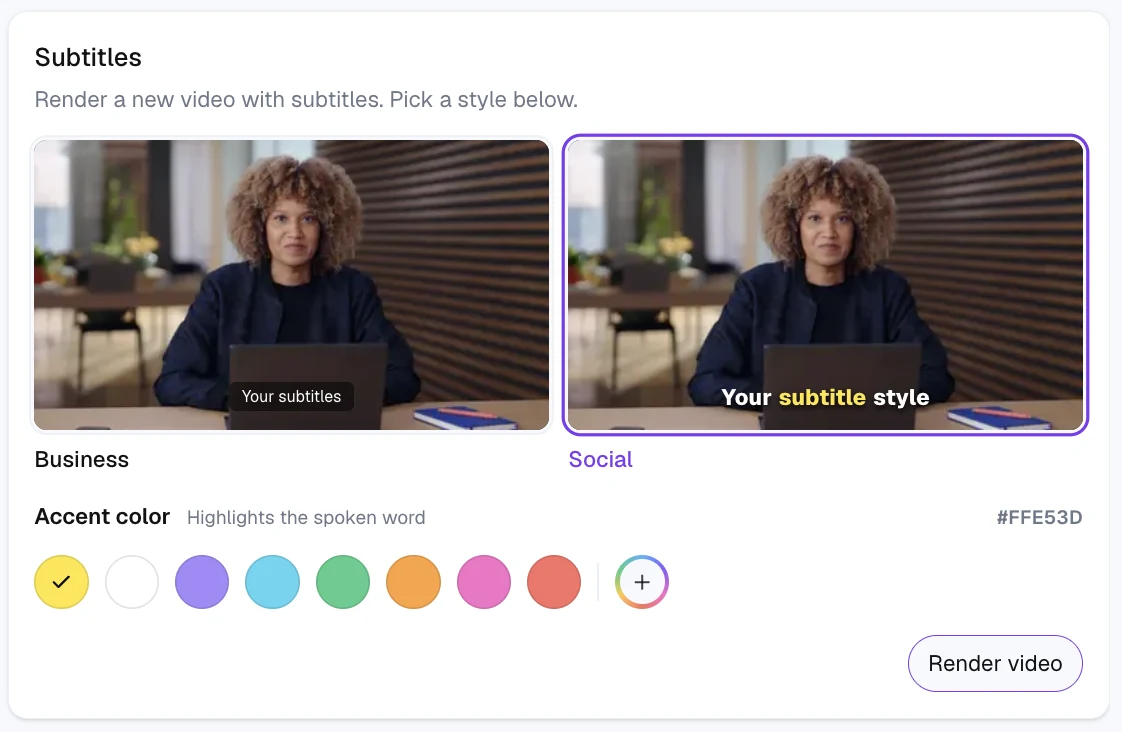
Set your accent colour
Only the Social style takes a colour; Business stays clean. For Social, pick the highlight colour yourself, from the palette or a custom value, so it matches your brand instead of the default yellow. Dubly even flags which colours read well on your footage, so the words stay legible.
Render, one video per language
Hit Render video and you get a new video with the subtitles burned in, in that language. Each target language gets its own subtitled version, ready to post anywhere.
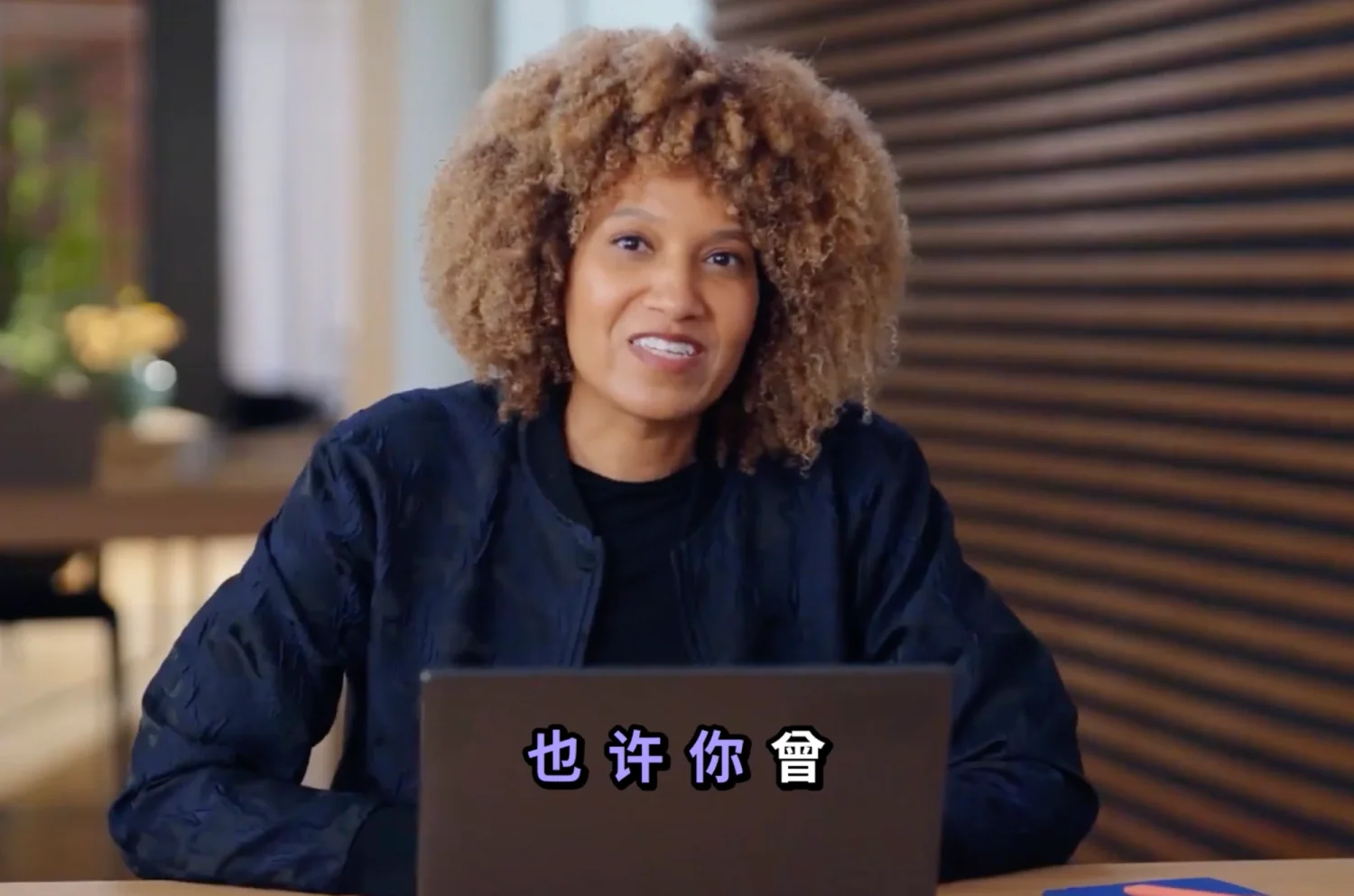
Two styles, one accent colour
Business. Clean, understated captions that stay out of the way. Best for a professional or corporate feel.
Social. Each word lights up as it is spoken, karaoke-style, in your accent colour. Built for feeds, where you have one second to catch the eye.
Your own accent colour. Set the highlight colour for the Social style from the palette or a custom value, so it matches your brand.
No separate file. Each language gets its own subtitled video, with nothing for your viewer to switch on. Prefer a caption file instead? You can still download a plain SRT.
2. Edit once, update every language
Fixed a word in the source text? You no longer have to repeat that correction in every language.
Change the source text
Edit the original text on any segment, right where you review the translation.
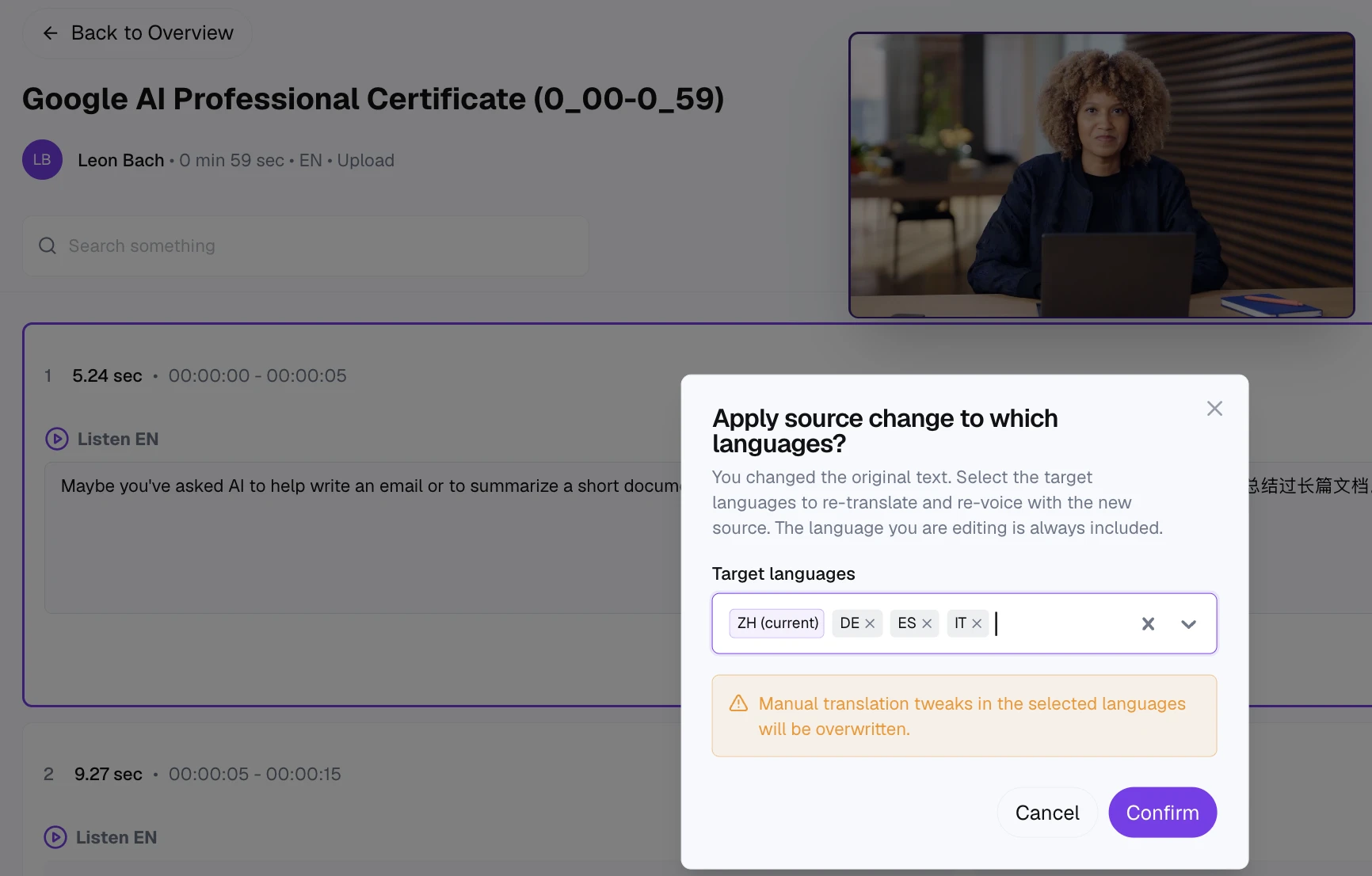
Choose which languages get it
Dubly asks which target languages should pick up the change. Keep it to the language you are editing, or apply it to all of them at once. Each selected language is re-translated and re-voiced from your new source, and the language you are editing is always included.
3. A new Help Center
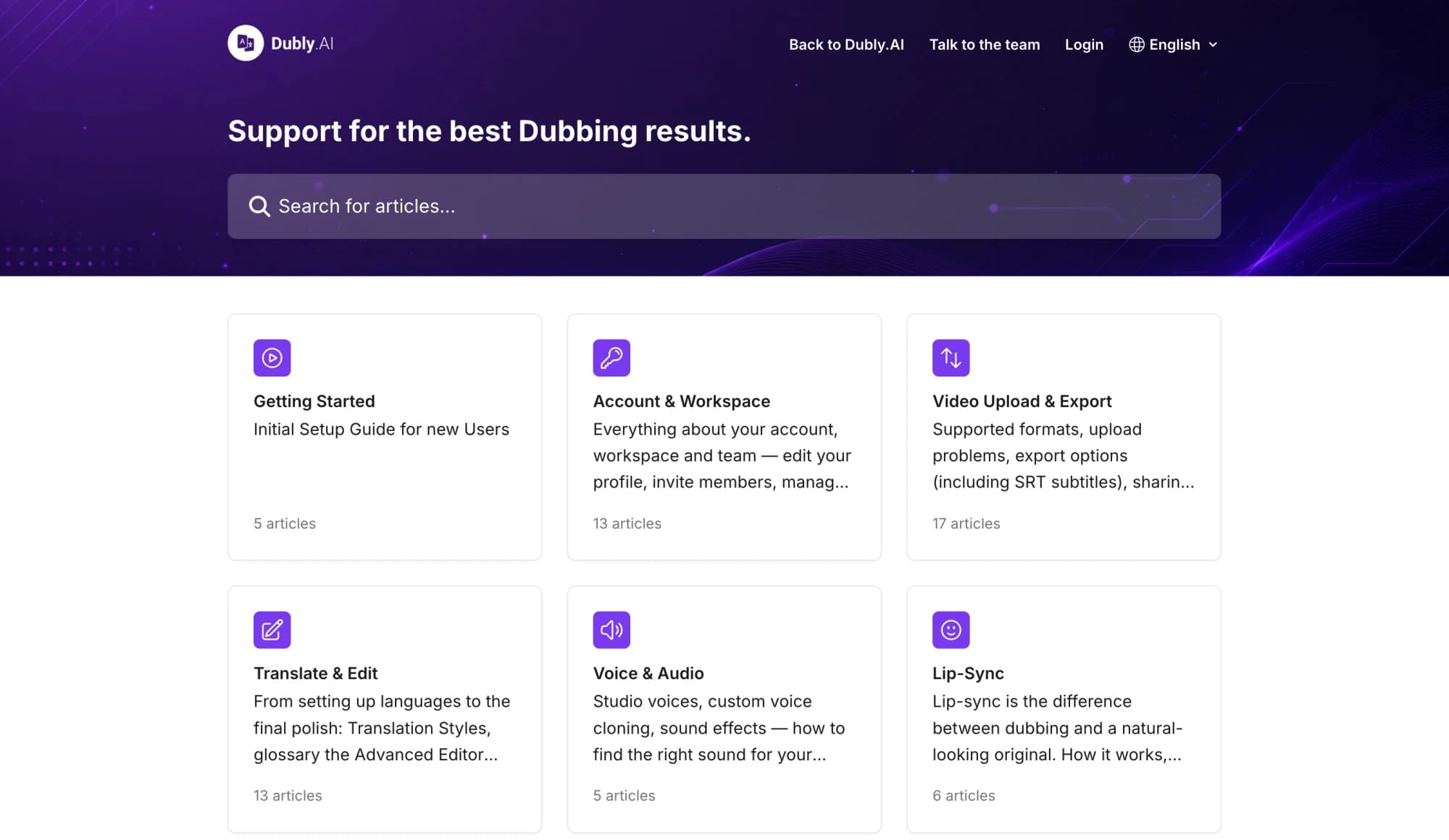
Alongside Subtitles, we opened a proper Help Center: guides and answers written by the Dubly team, sorted by topic, plus live chat right inside the app when you would rather just ask. Browse it at dubly.ai/help.
Answers, sorted by topic
From getting started to translating, voices, and lip sync, each topic has its own set of articles, with one search across all of them.
4. Smaller improvements
Steadier lip sync. Lip sync got smoother and more stable, especially on longer takes. In our quality checks it came out a little more accurate than before.
Move dubs into folders. File any dub into a folder to keep your workspace organised, and move it between folders whenever you like.
Why we built this
This one came straight from you. Your translated videos already sound right in every language, and you wanted them to work everywhere they get posted, from social feeds to accessibility to anyone who prefers to read along. So we added subtitles burned right into the video, in the language of each dub. You pick the style and the accent colour so they fit the video, and every language renders on its own.
And we are never done here. If there is anything you wish Dubly did, or a way we could make it better, just write us any time at hello@dubly.ai. The best ideas come from you.
Try it on your next video
Add subtitles in a clean Business or bold Social style
Highlight the spoken word in your own brand colour
Edit once, update every language